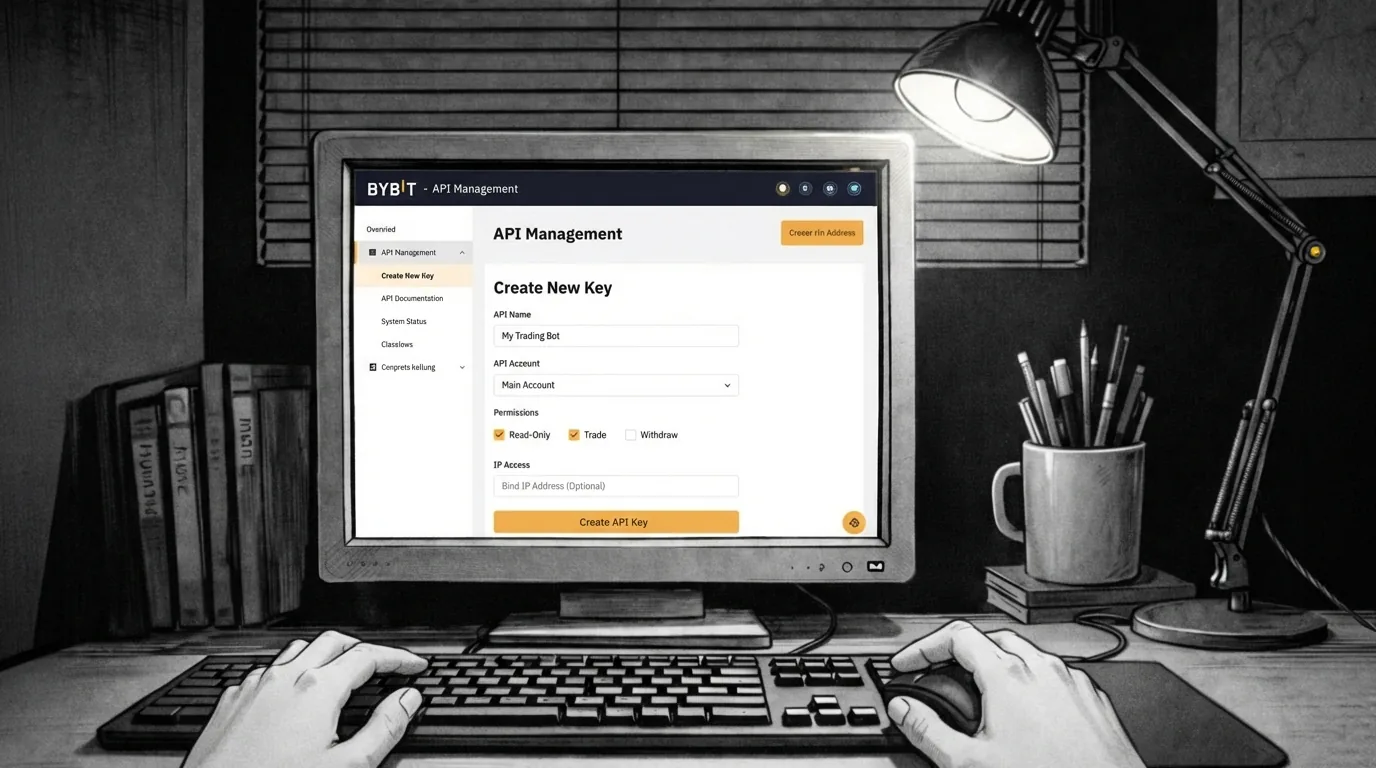
How to Create a Bybit API Key (Step-by-Step)
To connect your Bybit account with AuroraTrading.app, you need to create an API key inside Bybit. Aurora integrates with Bybit under broker program code `Kb001026`, so this guide focuses on a broker-compatible setup instead of a generic manual-only flow.
Register Bybit
If you don't have a Bybit account yet, you can sign up using our referral link:
Important Notes Before You Start
API keys can only be created on the Bybit website
There is no option to generate an API key via the Bybit mobile app.
Aurora routes authenticated Bybit V5 requests under broker code `Kb001026`
For new Aurora users, if your Bybit account shows Connect to Third-Party Applications, that is the preferred setup path. If your account only shows the standard API creation flow, Aurora still supports a normal Bybit API key and applies broker attribution server-side on authenticated requests.
New accounts may have a 48-hour restriction
For risk-control reasons, Bybit can block API key creation for the first 48 hours after registration.
Example:
If you registered at 10:00 AM UTC on May 12, you'll be able to create an API key starting from 10:00 AM UTC on May 14.
Create Your Bybit API Key
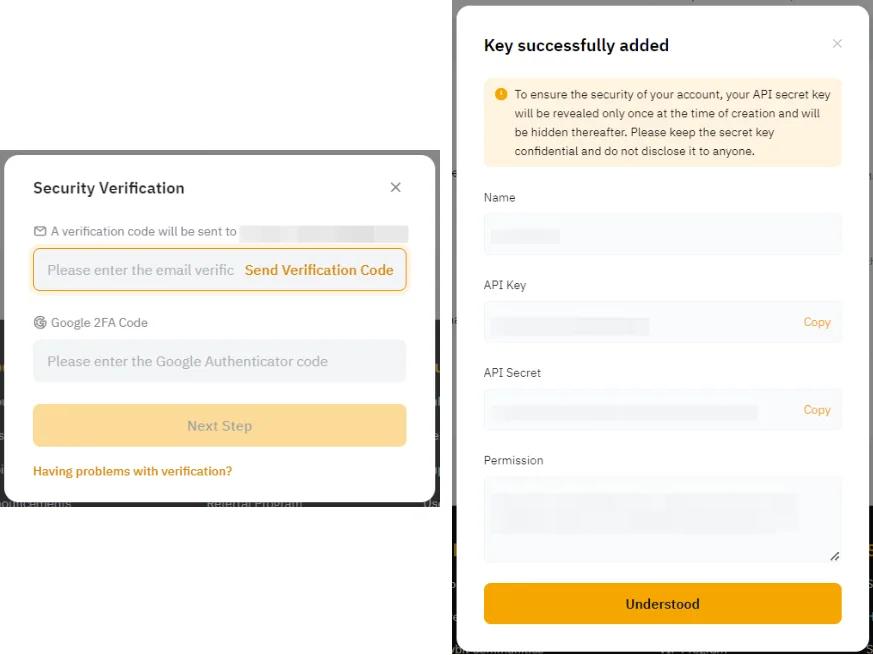
Step 1 - Open the API Management Page
Click the link to enter your account settings page.
Log in if prompted.
Alternative way:
- Open your Bybit trading page
- Click the human icon in the top-right corner
- Go to API
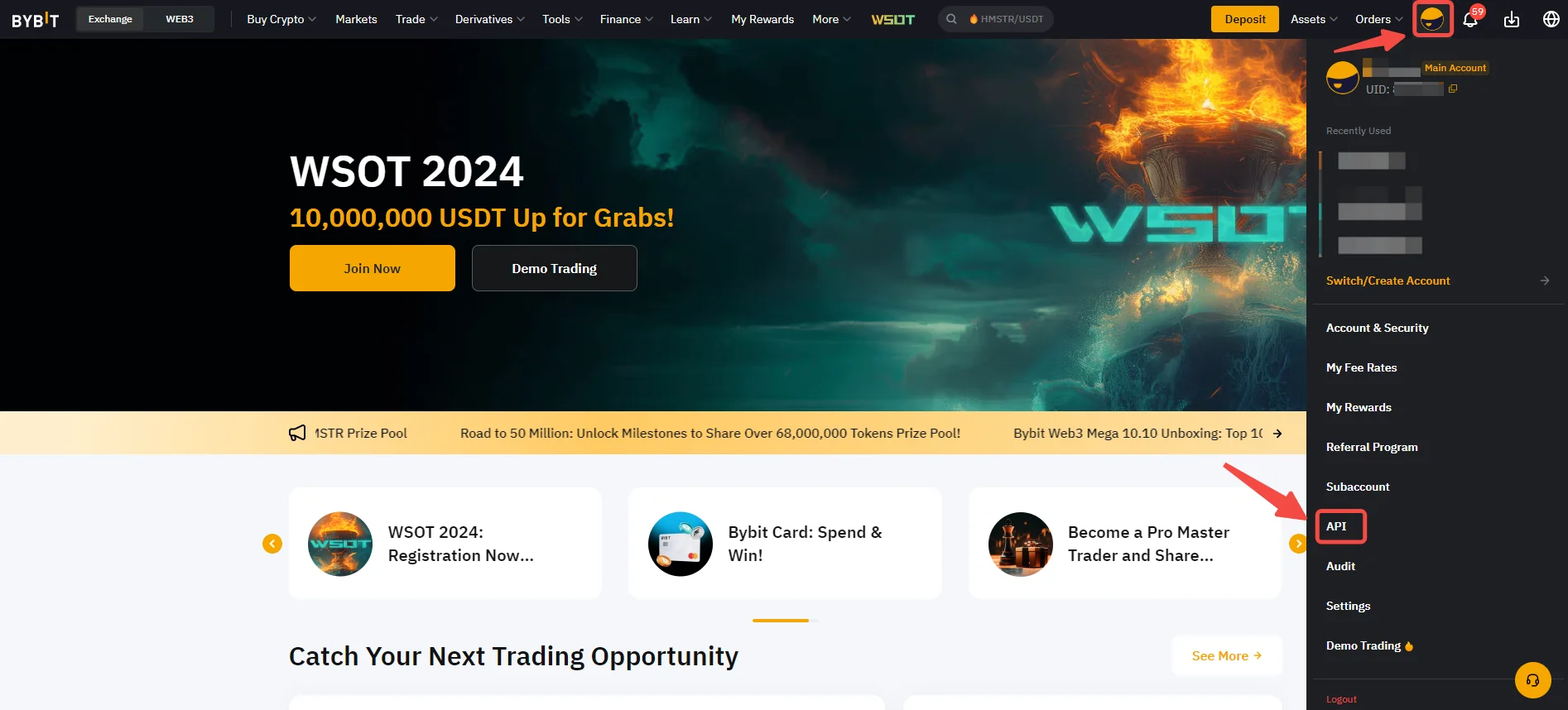
Step 2 - Click "Create New Key"
On the API Management page, click:
Create New Key
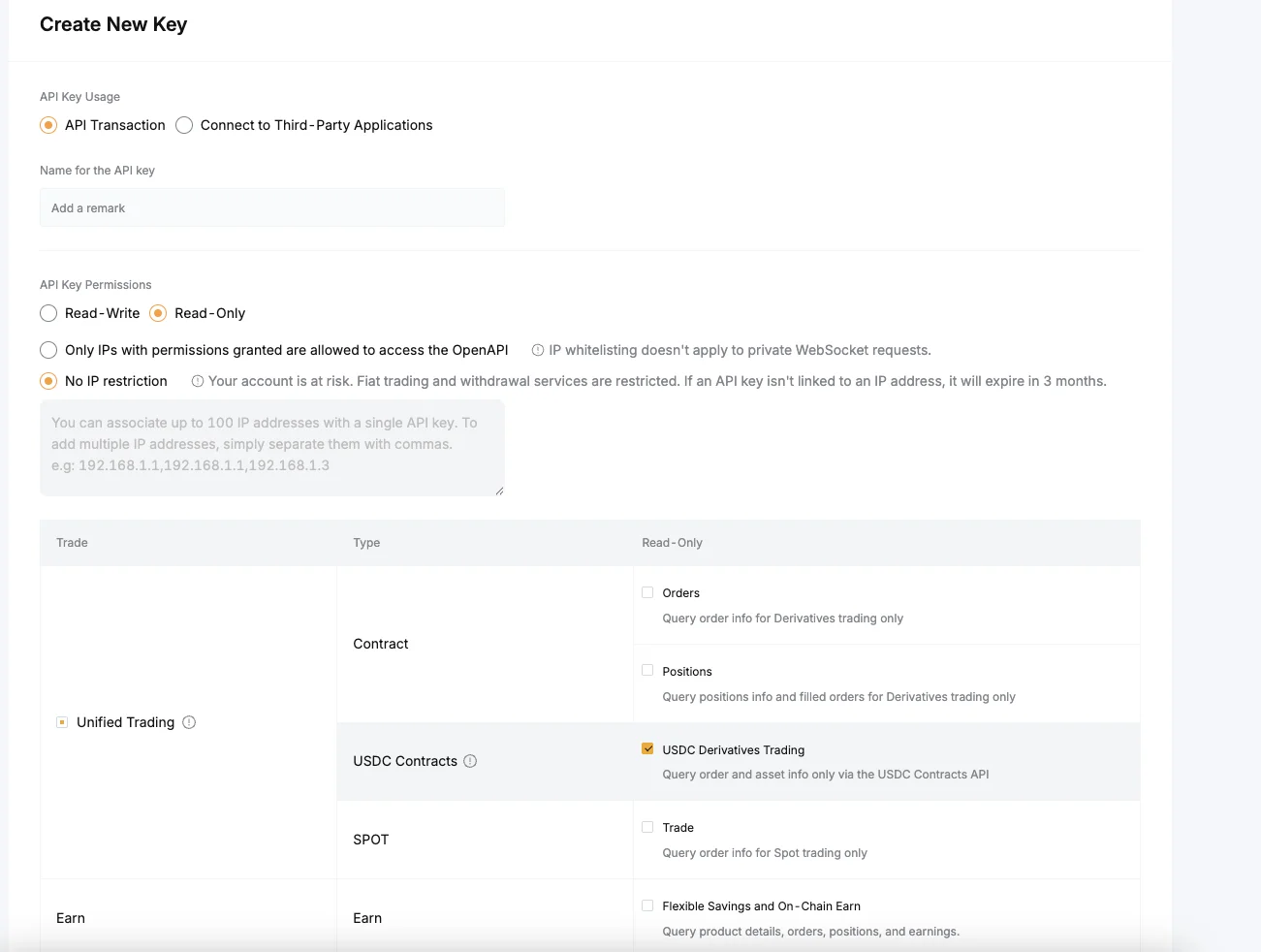
Step 3 - Configure Your API Key Settings
A pop-up window will appear. Configure the key according to your trading needs and the options visible on your account.
Preferred path for Aurora broker users
- If Bybit shows Connect to Third-Party Applications, use that option for the cleanest broker-compatible setup.
- If that option is not available on your account, use the normal API Transaction / system-generated API key flow.
Name for the API key
In the Add a remark field, enter any label you want, for example:
- AuroraTrading
This is just a name to help you recognize the key later.
API Key Permissions
Choose the minimum permissions based on what you want to do:
- For automated execution: enable Trade / Orders (Bybit may label this under API transaction permissions)
- Make sure Derivatives / USDT-USDC contracts permissions required for your trading mode are enabled
- For analytics only: use Read-Only
- Never enable withdrawals
IP Restriction
- If you are creating a standard manual API key, the practical default is No IP restriction, unless Aurora support has given you a fixed allowlist requirement.
- If Bybit is provisioning the key through a broker-managed / third-party application flow on your account, follow the restrictions shown by Bybit in that flow.
- Never guess an IP allowlist. A wrong allowlist will break trading immediately.
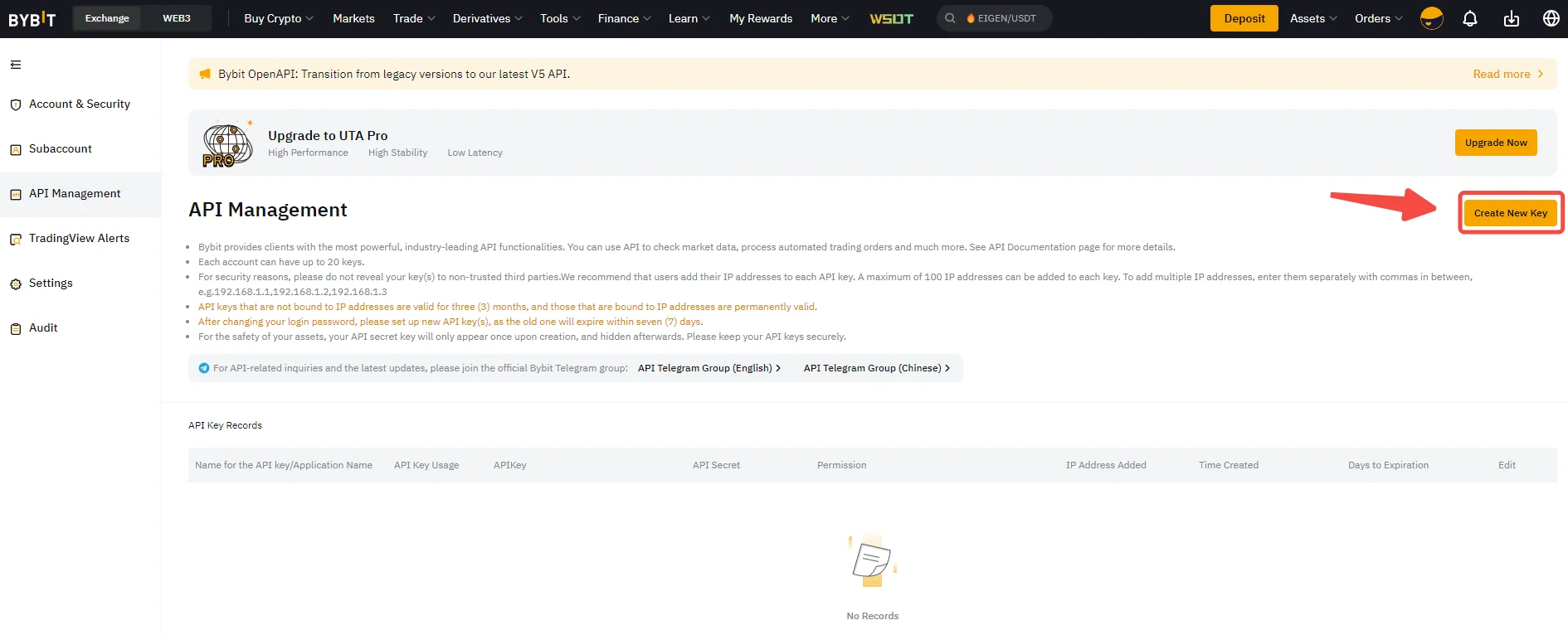
Step 4 - Confirm 2FA (Google Authenticator)
Enter your Google Authenticator 2FA code, then click:
Next Step
Done\! Your API Key is Ready
You have successfully created your Bybit API key 🎉
Next, you can use it inside AuroraTrading.app to connect your exchange account and start using automation tools.
Next Steps in Aurora
- Download the Aurora desktop app and connect your exchange keys.
- Review API key safety best practices before enabling live execution.
- Compare setup guides for Bitget and Binance.
Quick FAQ
Can I create a Bybit API key from the Bybit app?
No - API keys can only be created via the Bybit website in a browser.
Why can't I create an API key right after registration?
Bybit may restrict new accounts for the first 48 hours as a security measure.
Should I choose Read-Only or Read-Write permissions?
If you only want analytics, use Read-Only.
If you want automated execution, you must enable Trade / Orders (and keep withdrawals disabled).
Should I use "Connect to Third-Party Applications" on Bybit?
If Bybit shows that option on your account, yes, it is the preferred Aurora broker-compatible path.
If it is not available, a standard Bybit API key is still supported because Aurora sends broker attribution on authenticated Bybit V5 requests.
Do I need to enable IP Whitelisting?
Only if your Aurora setup is using a managed static allowlist or Bybit has explicitly provisioned your broker-linked key that way.
For a standard self-created key, most users should start with No IP restriction.
Is it safe to share my API key with AuroraTrading.app?
Yes - but never share your API Secret publicly (Telegram chats, screenshots, emails, etc.).
Keep your API credentials private and only paste them into the official AuroraTrading.app connection page.